Auto-Stop Virtual Machine Part 1
Infrastructure Tutorials
Download Auto Stop VM Part 1 tutorial.
In this tutorial I will be creating a PowerShell script to automatically stop a running
VirtualBox virtual machine. This is a continuation from my last tutorial Auto-Start Virtual Machine Part 1,
accessible here. Refer to the prerequisites listed below to complete this tutorial.
Prerequisites
- VirtualBox VM
For instructions on how to install VirtualBox and extension pack, see my VirtualBox Install tutorial here.
If you do not already have a virtual machine, my other tutorial, CentOS 7 Server Install, is here.

Steps to complete tutorial:

Create Script
I have created an empty script file named auto_stop_vm.ps1.
First, we will determine whether, or not, the virtual machine we wish to shutdown is running.
(NOTE: use the VM name you wish to auto-stop)
VBoxManage list runningvms | Select-String -Pattern '"centos7-VM"'

We have proven that the VM is running but we need to extract the value of the property from the object passed by the
Select-String cmdlet down the pipeline. To do this we will use the foreach shorthand % to access each of the objects passed down the pipeline.
The current object is identified by $_ and each object property can be accessed via the dot ‘.’ (ie. $_.Matches or $_.Value).
VBoxManage list runningvms | Select-String -Pattern '"centos7-VM"' | % { $_.Matches } | % { $_.Value }

For each object returned by Select-String, we are finding the value of each match. Although this tutorial is not a deep-dive into PowerShell cmdlets, the default output of Select-String is a MatchInfo object, which includes detailed information (properties) about the matches. The MatchInfo object has a property called Matches, which contains a list of regular expression matches. For each of the matches in the list returned, we are using the Value property to get the actual value.
Now we will get the line count returned to use for a test in our script.
$vm = VBoxManage list runningvms | Select-String -Pattern '"centos7-VM"' | % { $_.Matches } | % { $_.Value } | Measure-Object -line

To get only the value returned from the previous command, we will wrap it in brackets and use the Lines property of the resulting TextMeasureInfo object.
(VBoxManage list runningvms | Select-String -Pattern '"centos7-VM"' | % { $_.Matches } | % { $_.Value } | Measure-Object -line).Lines

Now we are ready to assign this value to a variable for our first test.
$vm = (VBoxManage list runningvms | Select-String -Pattern '"centos7-VM"' | % { $_.Matches } | % { $_.Value } | Measure-Object -line).Lines
We will test whether, or not, the virtual machine is running. If it is, we will use VBoxManage to execute a graceful shutdown. Then, we will ensure the command completed successfully. If the VM is not running, we will simply exit the script.
if ($vm -eq 1) {
    Write-Host "Trigger a proper shutdown mechanism from within centos7-VM"
    VBoxManage controlvm "centos7-VM" acpipowerbutton
    if ( "$?" -eq "True") {
        Write-Host "VM centos7-VM was successfully shutdown."
    } else {
        Write-Host "Something went wrong during the shutdown of centos7-VM."
    }
    sleep 5

} else {
    Write-Host "VM centos7-VM is not running."
    Write-Host "Goodbye."
    sleep 5
    exit 1
}
Our next test will be to determine if VirtualBox is running. If it is not running, we will simply display a message to that effect. If it is running, we will close VirtualBox. You will notice that I have included -ErrorAction SilentlyContinue in our test. This is what’s known as a “Common Parameter” of the Get-Process cmdlet. If VirtualBox is not running, instead of generating error messages to the PowerShell console, the command will continue execution and jump to the else clause of the if/else statement.
if (!(Get-Process VirtualBox -ErrorAction SilentlyContinue)) {
    Write-Host "VirtualBox NOT running."
    Write-Host "Goodbye."
} else {
    Write-Host "Closing VirtualBox"
    Stop-Process -Name VirtualBox
    if ("$?" -eq "True") {
        Write-Host "VirtualBox successfully closed."
    } else {
        Write-Host "Something went wrong stopping VirtualBox."
    }
}
We are now ready to review the contents of the entire script.
Review Script
Write-Host "Automate shutdown of VirtualBox VM."

# locate running VM based on it's name
# remove any empty lines from result of command
# determine line count value of result (should be 1)
$vm = (VBoxManage list runningvms | Select-String -Pattern '"centos7-VM"' | % { $_.Matches } |
 % { $_.Value } | Measure-Object -line).Lines

if ($vm -eq 1) {
    Write-Host "Trigger a proper shutdown mechanism from within centos7-VM"
    VBoxManage controlvm "centos7-VM" acpipowerbutton
    if ( "$?" -eq "True") {
        Write-Host "VM centos7-VM was successfully shutdown."
    } else {
        Write-Host "Something went wrong during the shutdown of centos7-VM."
    }
    sleep 5
} else {
    Write-Host "VM centos7-VM is not running."
    Write-Host "Goodbye."
    sleep 5
    exit 1
}

# close VirtualBox
if (!(Get-Process VirtualBox -ErrorAction SilentlyContinue)) {
    Write-Host "VirtualBox NOT running."
    Write-Host "Goodbye."
} else {
    Write-Host "Closing VirtualBox"
    Stop-Process -Name VirtualBox
    if ("$?" -eq "True") {
        Write-Host "VirtualBox successfully closed."
    } else {
        Write-Host "Something went wrong closing VirtualBox."
    }
}

Write-Host "Until the next time..."

sleep 10
Execute Script
To execute the script, open a PowerShell console, if need be, change directory to the location of your script and execute the following: .\auto_stop_vm.ps1
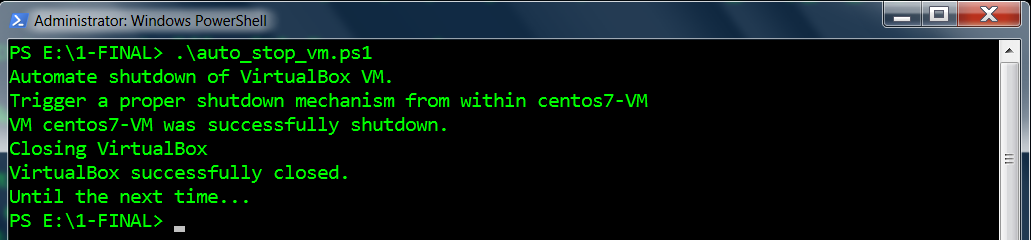
The virtual machine was successfully shutdown and VirtualBox was closed.
Hopefully, you’ve enjoyed completing this tutorial and found it helpful.
After completing both my basic automation tutorials to start (accessible here) and stop a VM, you might want to see my slightly more advanced automation tutorials. In the advanced versions of these two scripts, I include starting (start VM adv), or stopping (stop VM adv) remote passwordless SSH connections using the PuTTY terminal emulator.
If you would like to see my other tutorials, they can be accessed here.
Finally, if need be, you can download this tutorial Auto Stop VM Part 1.